On this page
Viewing & Reading
Every archived page can be viewed three ways: the pixel-faithful offline snapshot, a distraction-free reader version, and the live page on the web. Switch freely; the archive never changes unless you tell it to.
Saved, Reader & Live
| Mode | What you see |
|---|---|
| Saved | The offline archive, exactly as captured: layout, images, styling. Works with no internet connection and even after the original site is gone. |
| Reader | Just the article: clean typography, no ads, no navigation clutter. Extracted from your archived copy, so it's offline too. |
| Live | The current page on the web, handy for checking what changed since you archived it. |
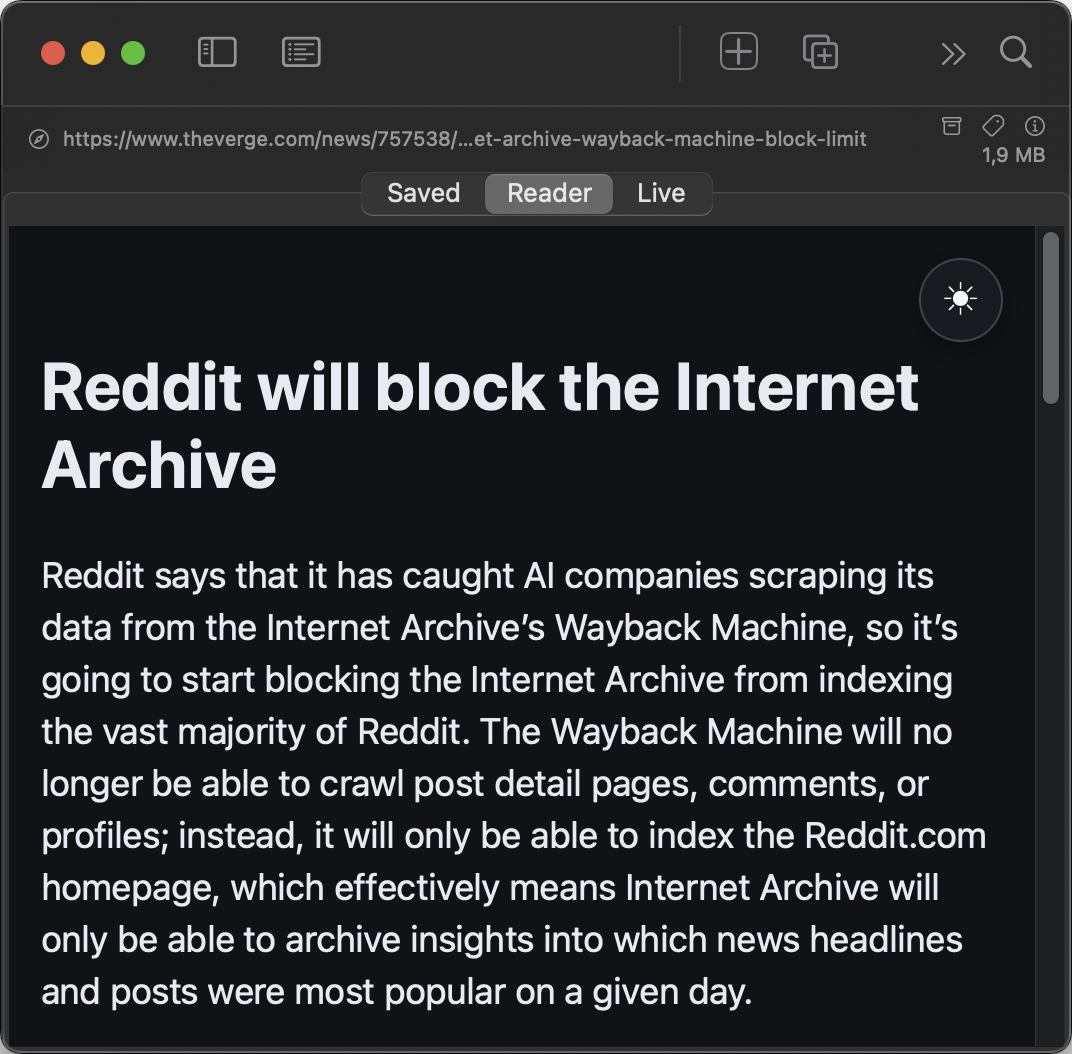
Markdown-only items (see Capture Options) show a rendered reader view of the Markdown file instead of the Saved tab.
Reader typography & night mode
Reader mode brings its own typography controls: the Aa button opens a small panel with Font (System, Serif or Rounded), Text Size, column Width (Narrow / Normal / Wide) and Line Spacing (Compact / Normal / Relaxed). Your choices are remembered and apply to the reader view of every item.
iOS On iPhone and iPad a moon button floats over the reader: it switches the article between light and dark reading, independent of the system appearance.
Per-item JavaScript
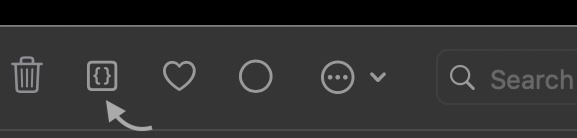
Archives captured with Save JavaScript can optionally run their scripts while you view them: for interactive charts, image galleries, accordions. Use the JavaScript toggle in the viewer toolbar to switch it on per item.
Privacy is preserved: scripts run against the offline archive behind a content blocker, so the page cannot phone home or load trackers.
Toolbar actions
While viewing an item you can toggle Favorite, mark it Read / Unread, delete it, and open the Options menu (home of Copy URL, the export commands, and Show in Finder macOS). Which of these buttons appear is configurable in Settings → Appearance.
The header icons
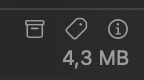
Above every view sits a slim header: on the left the Safari icon (open in browser) and the URL (click to copy the link); on the right three icons and (small, beneath them) the archive's file size.
| Icon | What it does |
|---|---|
| Archive (status) | Shows whether you're looking at the saved copy or the live page. A grey archive symbol means “saved copy”. On crawl pages it's clickable and explains how the page was saved. Static snapshots can be improved with Reload as Browser Version. If you follow a link onto the web, the symbol warns you: orange = “live page, not saved” (with Save Page / Save into Crawl), green = “already archived”, and Return to Saved Copy takes you back to the archive. |
| Opens the tag editor, the same as right-click → Edit Tags or ⇧⌘T. | |
| Opens the info panel with every detail about the archive. |
Hide the file size beneath the icons if you like: Settings → Appearance → file sizes. When an item has tags, they appear on the same row next to the size.
The item info panel
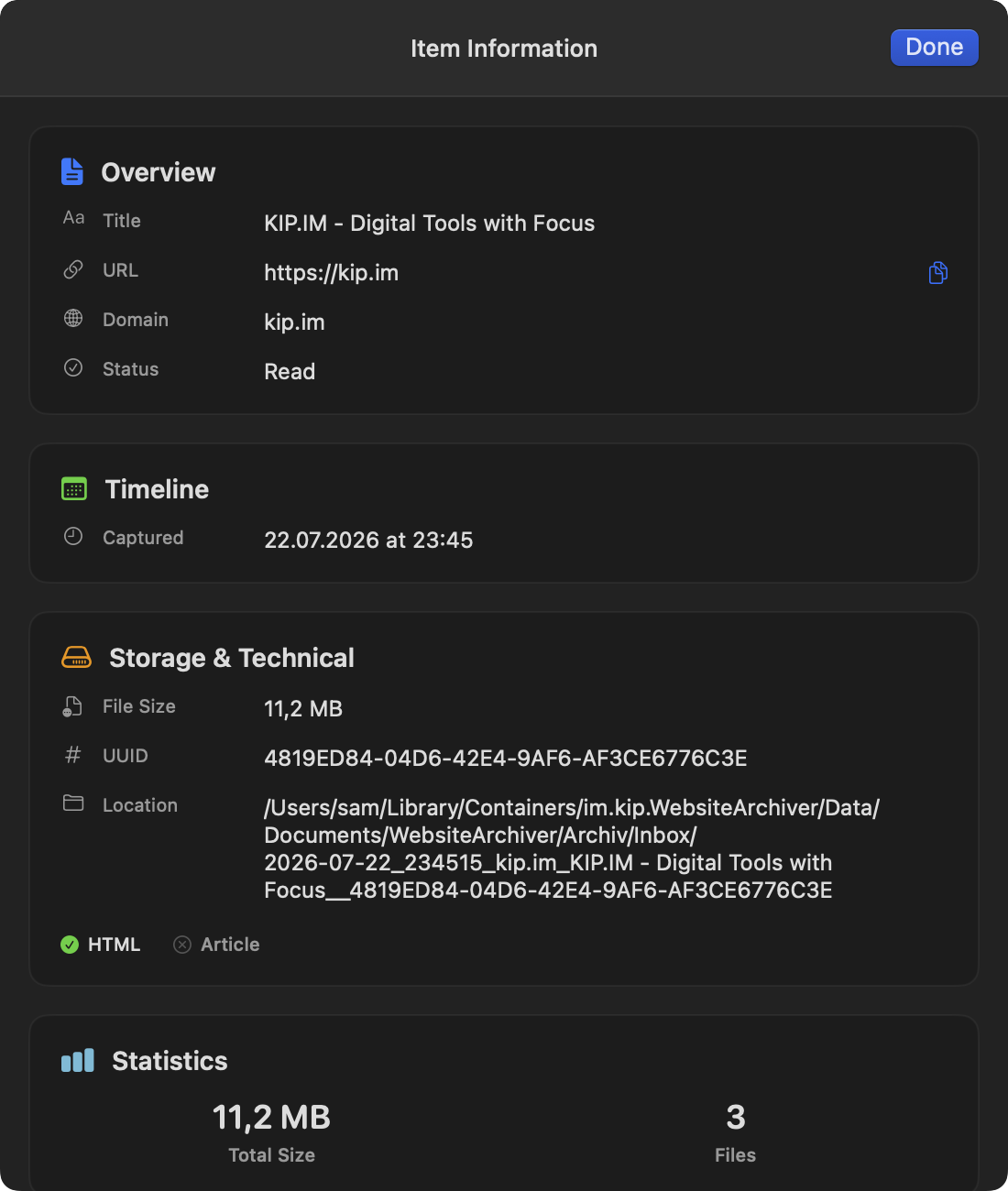
Open it from the info icon (ⓘ) on the right of the header. The info panel shows everything about an archive: capture and modification dates, file size and storage format, its folder location, tags, which collections contain it, and statistics like the number of stored files.
Reading on iOS iOS
On iPhone the reading experience is Safari-like: scroll down and the navigation chrome slides away so the page gets the full screen; scroll up briefly to bring it back. The mode switcher (Saved / Reader / Live) sits in the bottom bar.
Items whose content is still on its way from another device (via sync) show a small cloud indicator in the list. The archive opens as soon as the download finishes.