On this page
Folders, Collections & Tags
Three complementary ways to keep a growing archive tidy: folders decide where files live, collections group pages by topic without moving them, and tags make everything findable.
Folders & the Inbox
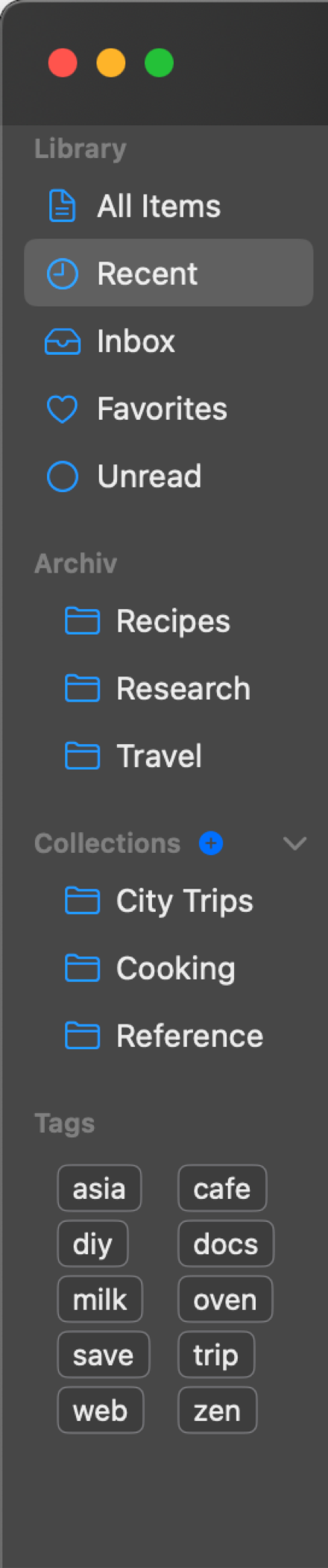
Folders (the Archiv section in the sidebar) are real folders on disk inside your library: what you see in the app matches what you see in Finder. New captures land in the Inbox unless you file them elsewhere.
- Create, rename, nest and delete folders directly in the sidebar (right-click).
- Folders can be arranged hierarchically: drag a folder onto another to nest it, or onto the section header to move it back to the top level.
An item lives in exactly one folder. If you want a page to appear in several places, that's what collections and tags are for.
Collections
Collections group items logically: an item can be in any number of collections while staying in its folder. Create collections and sub-collections from the sidebar's Collections section macOS or the Collections drawer iOS, then add items via drag & drop or the context menu. Each collection gets its own symbol. Pick from a large icon library when creating it, or change it later via Edit Collection.
Tags
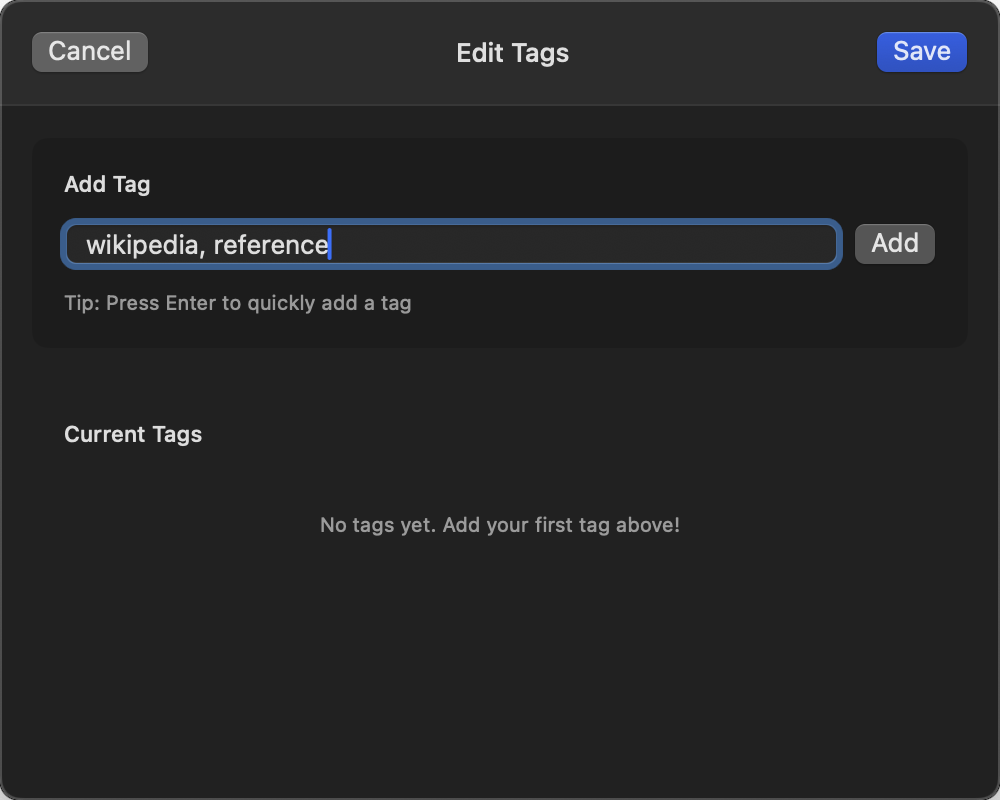
Tags are free-form keywords. Add them while capturing (Quick Capture form) or later: right-click → Edit Tags, ⇧⌘T, or via the tag icon in the viewer header. The sidebar's tag cloud macOS filters the list by tag with one click, and the search matches tags too. Tags can be shown directly in the item list (Settings → Appearance → Show Tags in List).
Library filters
The Library section of the sidebar offers built-in views: Inbox, Recent, All Items, Favorites and Unread. Right-click a filter to hide the ones you don't use; drag to reorder them.
Moving items
- macOS Drag & drop items onto any folder or collection in the sidebar. Multi-select works, the drag preview shows the count. Or right-click → Move to Folder…
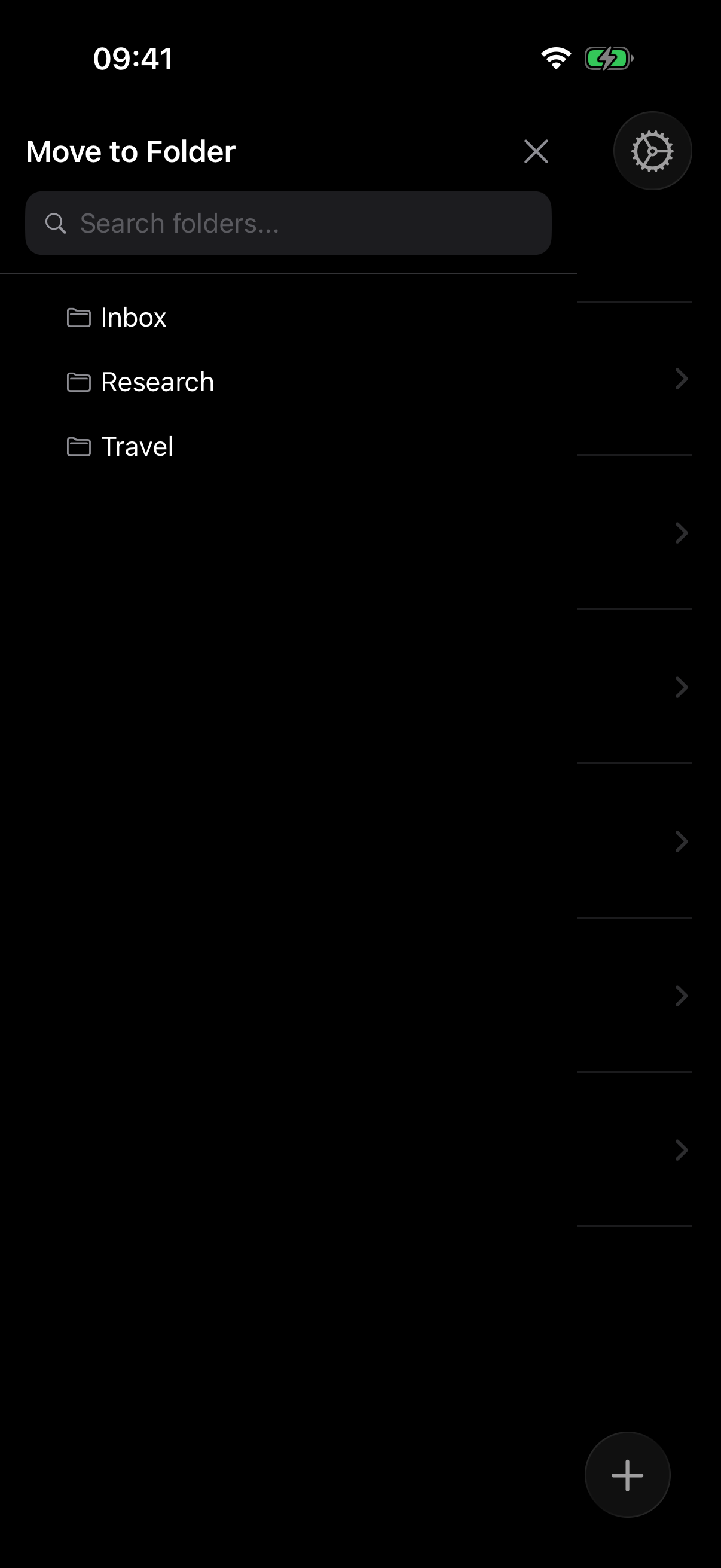
- iOS Drag an item towards the left edge to summon the move panel, or use the context menu (long-press) → Move to Folder…
Favorites & read state
Every item can be marked as Favorite (⇧⌘F) and Read / Unread (⇧⌘R). Favorites and Unread have their own sidebar filters; indicators in the list are individually toggleable in Settings → Appearance.
Undo & delete
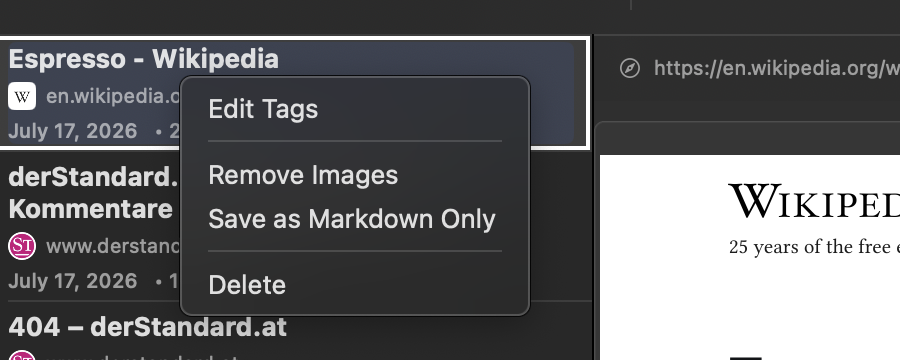
Deleting asks for confirmation (single or multi-selection), and it's undoable: ⌘Z brings deleted items back, ⇧⌘Z redoes. The context menu also offers content actions like Remove Images and Save as Markdown Only (see Capture Options).