On this page
Images & Markdown
Not every page deserves its multi-megabyte hero images. WebsiteArchiver gives you two ways to keep archives lean: strip images (with a smart size threshold) or skip HTML entirely and keep pages as pure Markdown, both at capture time and for archives you already have.
Why slim archives?
A typical article page weighs 3-8 MB, and most of that is images. If you archive a lot (or sync your library across devices), lean archives pay off quickly:
- Text-only research archives stay in the kilobyte range.
- Sync and backups get faster and use less iCloud space.
- Markdown files plug straight into note apps like Obsidian or Bear.
Removing images at capture
Tick Remove images in the Quick Capture form and the archive is saved without inlined images: the layout and text stay intact, image slots collapse cleanly.
For one-click captures there is a matching default: Settings → Capture → Remove images with Quick URL captures. Enable it and every Quick URL / shared-link capture is text-focused automatically.
The size threshold slider
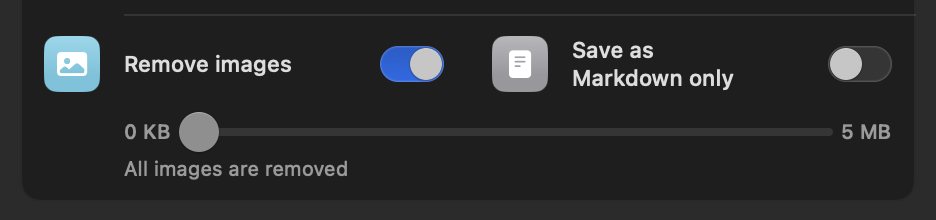
Removing all images is often too much: icons, formulas or small diagrams carry meaning. That's what the size slider (0 KB to 5 MB) is for:
- At 0 KB, every image is removed.
- At, say, 200 KB, icons and small illustrations survive while photos and hero banners are dropped.
- At 5 MB, only truly huge files are stripped.
Saving as Markdown only
Save as Markdown only takes the readable article content and stores it as a plain .md file, no HTML archive at all. In the app the item shows a clean reader view of the Markdown; on disk you get a portable text file with headings, links and emphasis preserved.
Markdown pairs beautifully with Remove images for the smallest possible archives: a whole reference library in a few megabytes.
The default for one-click captures lives in Settings → Capture → Save as Markdown only with Quick URL captures.
Converting existing archives
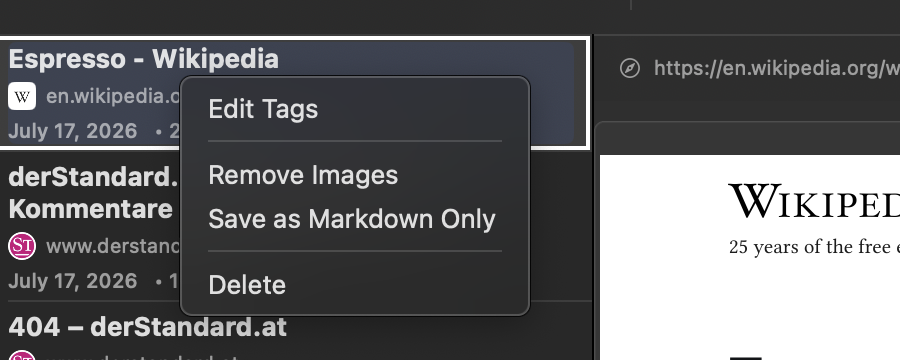
Both transformations also work on items you captured long ago. Right-click any item:
- Remove Images: strips images from the stored archive and reclaims the space immediately.
- Save as Markdown Only: converts the archive to a Markdown file and removes the HTML version. The app warns you first, and the action can be undone with ⌘Z.
Combining & choosing
| You want… | Use |
|---|---|
| The page exactly as it looked, but smaller | Remove images with a threshold around 200-500 KB |
| Pure text for notes, quotes, processing | Save as Markdown only |
| The absolute minimum footprint | Markdown + Remove images |
| Pixel-perfect archival copies | Neither: enable Compression instead (~50% smaller, lossless) |
All other capture switches are covered in Capture Options; the export formats (PDF, WARC …) in Exporting Archives.