On this page
Backup & Library
Your library is a folder of plain files: easy to back up, easy to move, impossible to lock in. This page covers manual backups and managing the library itself.
Exporting a backup
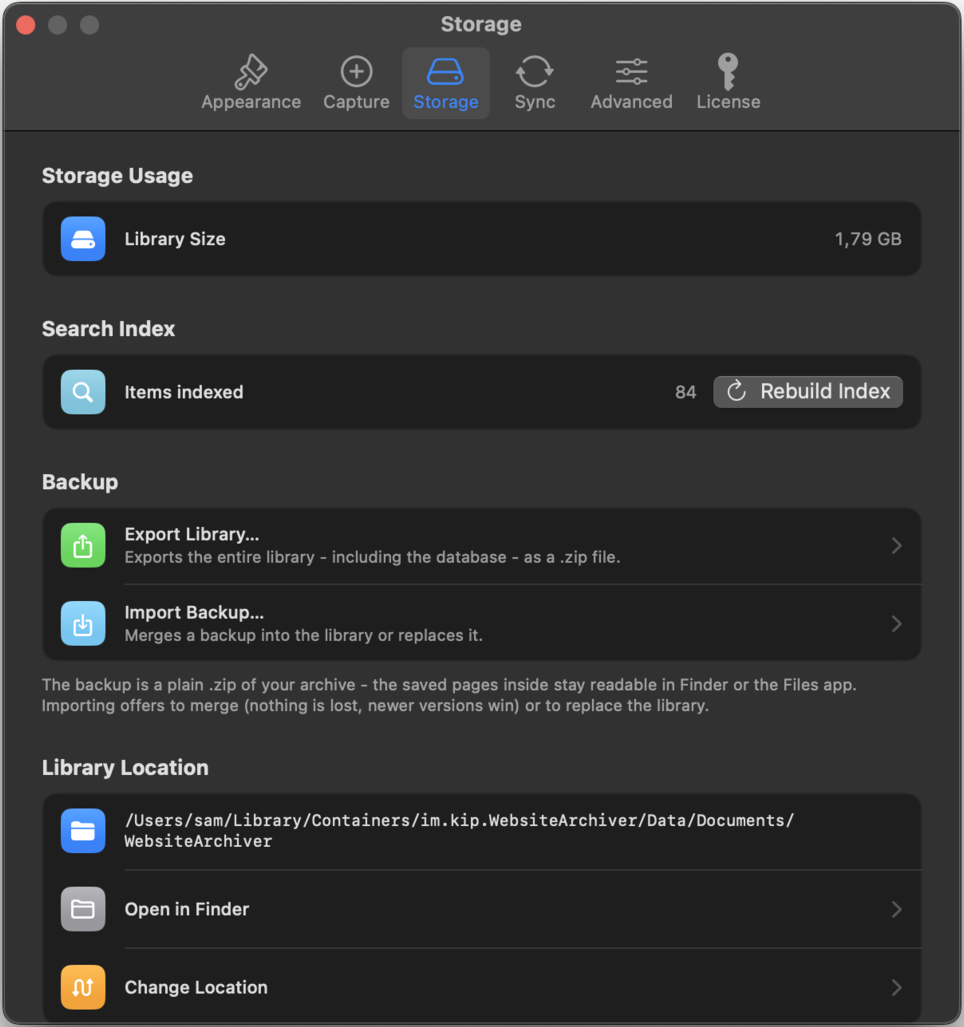
Settings → Storage → Export Library… packs your entire archive into a single ZIP file. It's a completely ordinary ZIP: unpack it anywhere and you'll find your archives as readable HTML files. No proprietary format, no app required.
The same openness applies to the library folder itself: Archiv/ holds your folders with the archived pages, Collections/ your collections, plus the app's database and the search index, all inspectable in Finder at any time.
macOS choose a destination in the save dialog · iOS the ZIP goes to the share sheet (Files, AirDrop, …).
Importing: Merge vs. Replace
Settings → Storage → Import Backup… reads a backup ZIP, shows what's inside, and offers two ways to bring it in:
| Merge | Replace Library | |
|---|---|---|
| What happens | Backup items are added to your current library; when an item exists in both, the newer version wins | Your current library is swapped out for the backup |
| Data loss | None: nothing is deleted | The previous library is moved aside internally, not erased |
| Use when | Consolidating two libraries, recovering single items | Restoring a machine, starting over from a known state |
Replace is the drastic option: the app asks for explicit confirmation. If you use sync, the restored library is re-uploaded to your other devices afterwards, so the restore wins over older synced deletions.
Storage usage & search index
The Storage pane also shows how much space your archive occupies and the state of the search index (items indexed, Rebuild Index button); see Search & Sorting.
The library location macOS
The library folder is yours to place: Settings → Storage → Library Location shows the current path with Open in Finder and Change Location… to move the library, for example onto an external drive or into a folder your regular backup tool already covers.
iOS On iPhone and iPad the library lives inside the app's own storage and is included in device backups (iCloud/Finder). Use Export Library… for a manual copy you can take elsewhere.