/
WebsiteArchiver on iOS iOS
The iOS app is the full archive in your pocket: same library format, same capture engine, same sync as the Mac. Its interface is built around one list and three drawers instead of a sidebar.
Navigating the app
The item list is the root of the app. Top-left, three buttons slide in drawers:
- Library: the filters (Inbox, Recent, All Items, Favorites, Unread).
- Folders: your folder hierarchy (the same "Archiv" folders as on the Mac).
- Collections: your collections, including sub-collections.
Top-right, the gear opens Settings as a sheet, and the search field sits right below the title, full-text search included (see Search & Sorting). Tap an item to read it. The navigation chrome hides itself while you scroll (see Viewing & Reading).
The bottom bar
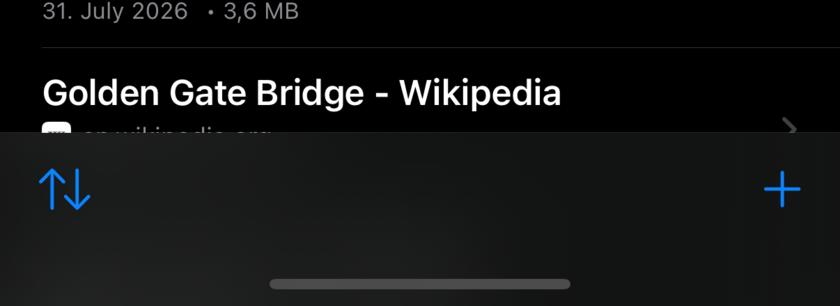
- Sort menu (left): date, title, domain, size, plus the Group Crawls toggle.
- + (New Capture): the capture sheet (see Quick Capture).
To file an item, drag it towards the left edge (the move panel appears) or long-press for the context menu.
Background capture & sync
- Captures keep running when you leave the app, and are retried automatically if iOS interrupts them.
- Sync runs in the background too: iOS periodically lets the app exchange changes, so your library is current when you open it (see iCloud Sync).
iOS vs. macOS
| iOS | macOS | |
|---|---|---|
| Capture | Capture sheet, share sheet, desktop-layout option | Quick Capture, Quick URL, Quick Paste, Safari extension |
| Crawler | Not available | Full multi-page crawler |
| Exports | Share Snapshot (HTML), library ZIP | PDF, WARC, WebArchive, MHTML, combined crawl exports |
| Cookies | Built-in browser & saved cookies | Same, plus Cookie Manager |
| Pricing | Paid app, everything included | Free up to 10 items, one-time unlock |
| Library location | Fixed, inside the app | Any folder you choose |
Everything else (archive format, folders, collections, tags, search, sync, viewing modes) is identical on both platforms.