
/
On this page
Settings Reference
Every option in the app, pane by pane. macOS opens Settings via ⌘,; iOS via the gear button above the item list.
Appearance
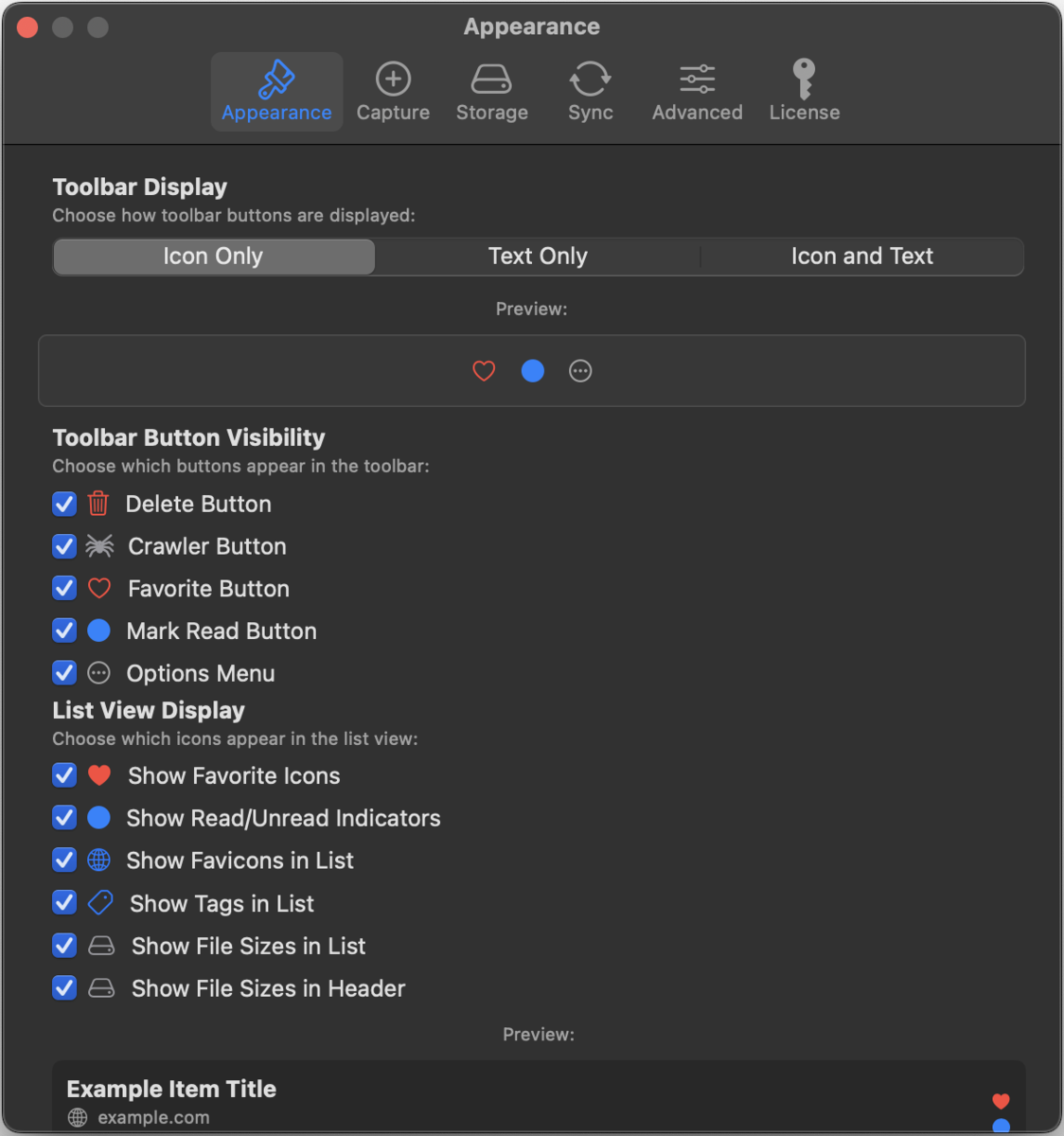
- Toolbar Display macOS: icons only, text only, or both, with a live preview.
- Toolbar Button Visibility: choose which buttons appear in the item toolbar: Delete, Crawler, Favorite, Mark Read, Options.
- List View Display: toggle each piece of information in the item list: favorite icons, read/unread indicators, favicons, tags, file sizes (in the list and in the header).
- Sidebar Visibility macOS: show or hide whole sidebar sections: Library, Archiv (folders), Collections, Tags.
Capture
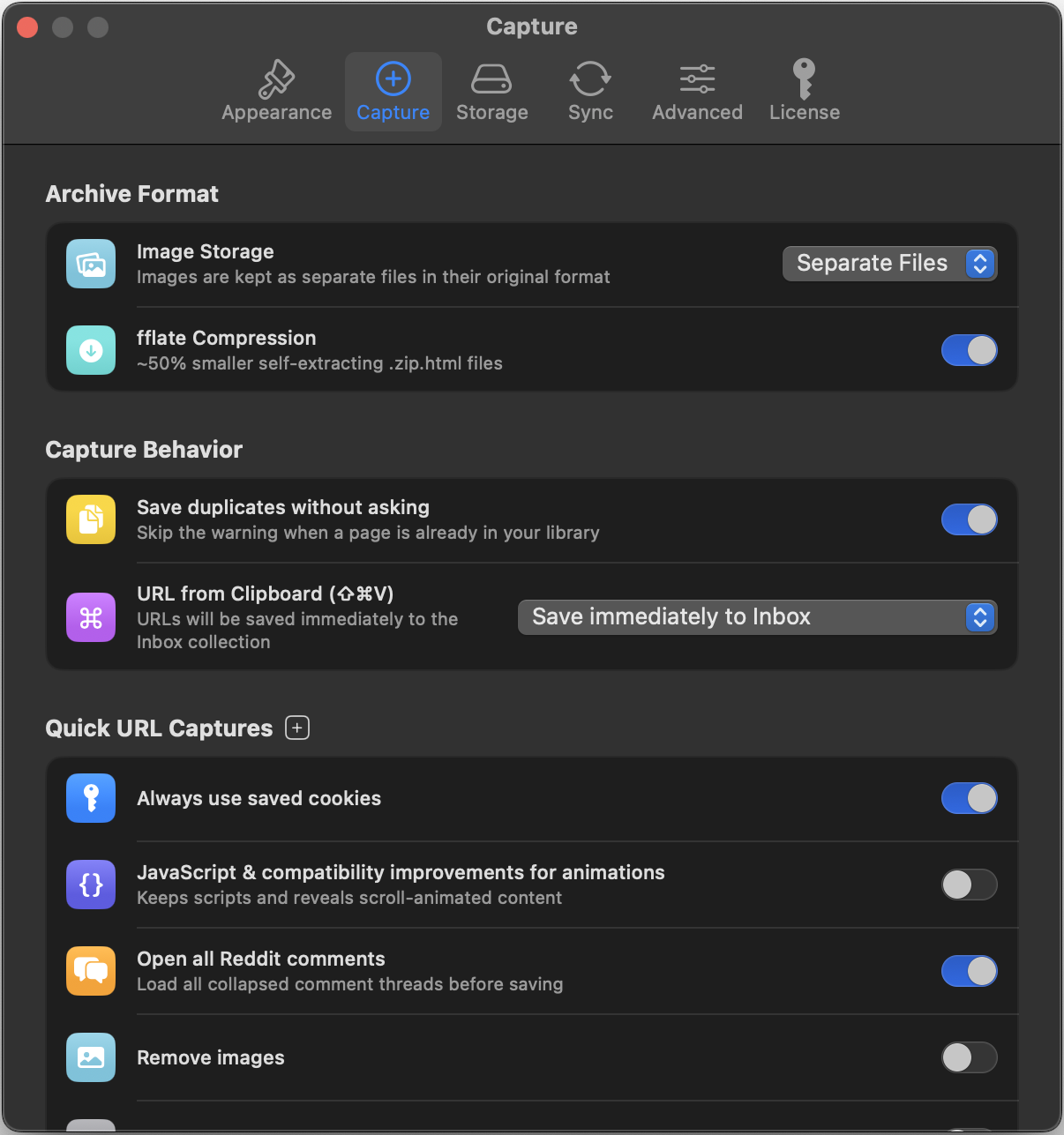
Defaults for one-click captures (Quick URL, shared links) and everything about the capture engine:
- Image Storage: separate image files next to the archive (the default) or one self-contained HTML file with images embedded.
- Compression: self-extracting compression, roughly halves archive size. On by default.
- Duplicates: save duplicates without asking.
- Shortcut macOS: whether Quick Paste (⇧⌘V) opens the form or saves immediately.
- Cookies: always use saved cookies for direct captures.
- JavaScript: JavaScript & compatibility improvements for animations (see Capture Options).
- Reddit: open all Reddit comments by default. Enabled out of the box.
- Images & Markdown: remove images by default (with size threshold) / save as Markdown only.
- Browser Login: open the built-in browser; Cookie Manager macOS.
- Share from Safari iOS: shared links open Quick Capture instead of saving directly.
- Page Layout iOS: capture the desktop layout on iPhone (iPad always does).
- Crawler macOS: external domains, hide crawl folders, robots.txt, politeness delay, parallel downloads, default depth & page limit (see Website Crawler).
Storage
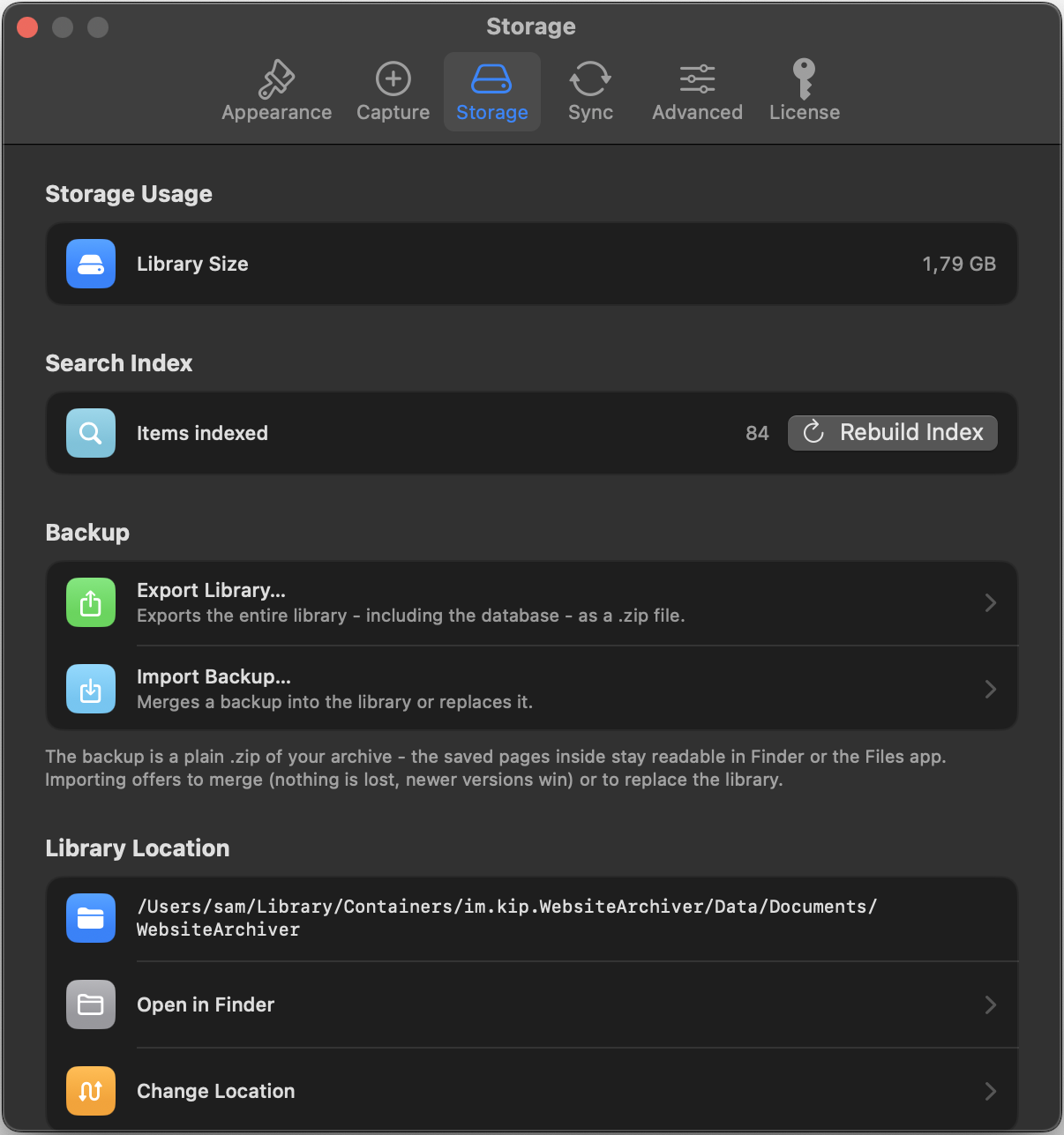
- Storage usage: total size of your archive.
- Search index: indexed item count and Rebuild Index.
- Backup: Export Library… / Import Backup… (see Backup & Library).
- Library Location macOS: current path, Open in Finder, Change Location.
Sync
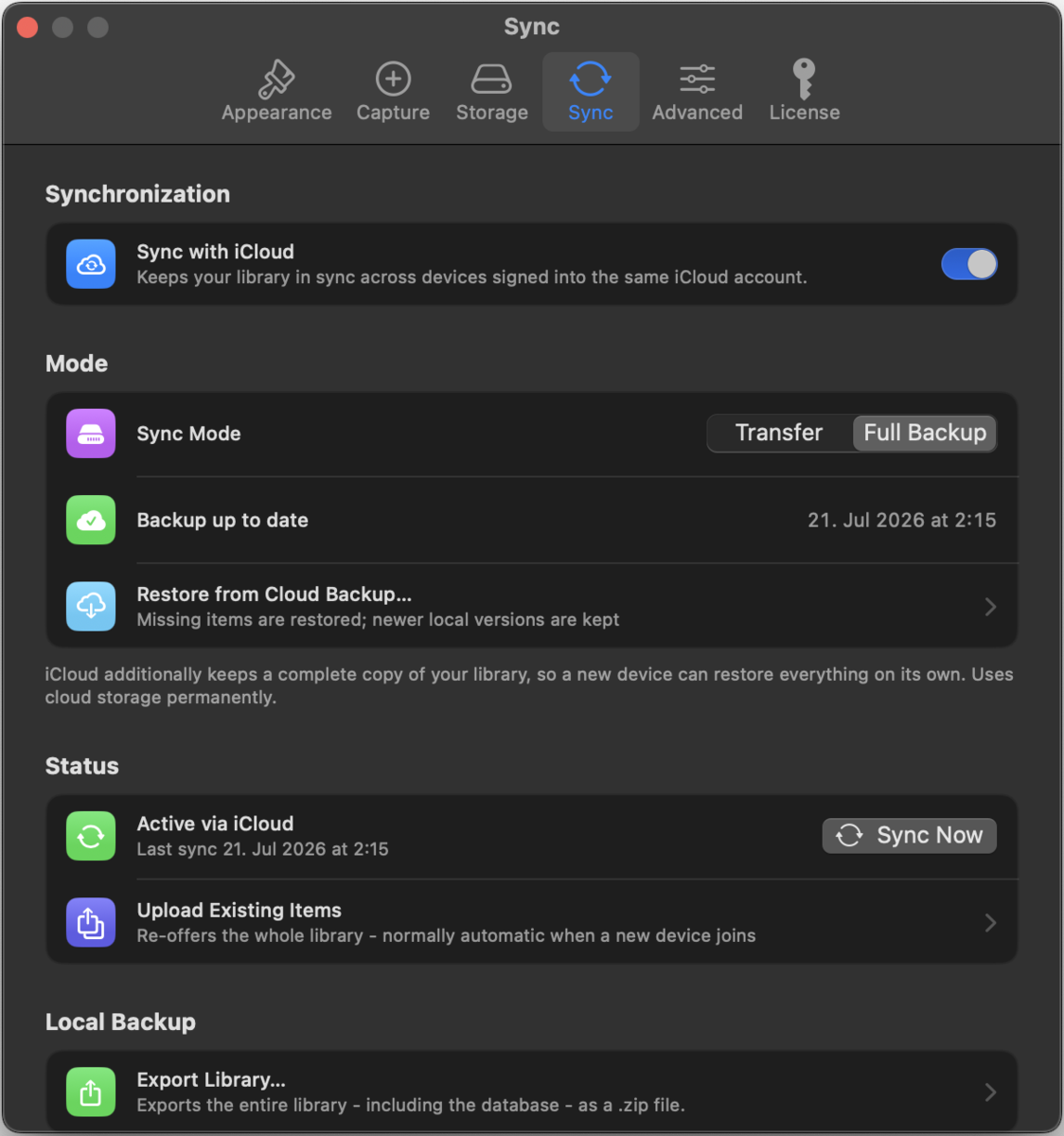
Provider (Off / iCloud), Transfer vs. Full Backup mode, status & Sync Now, Upload Existing Items, the device list, cloud-backup restore and deletion, all documented in iCloud Sync.
Advanced
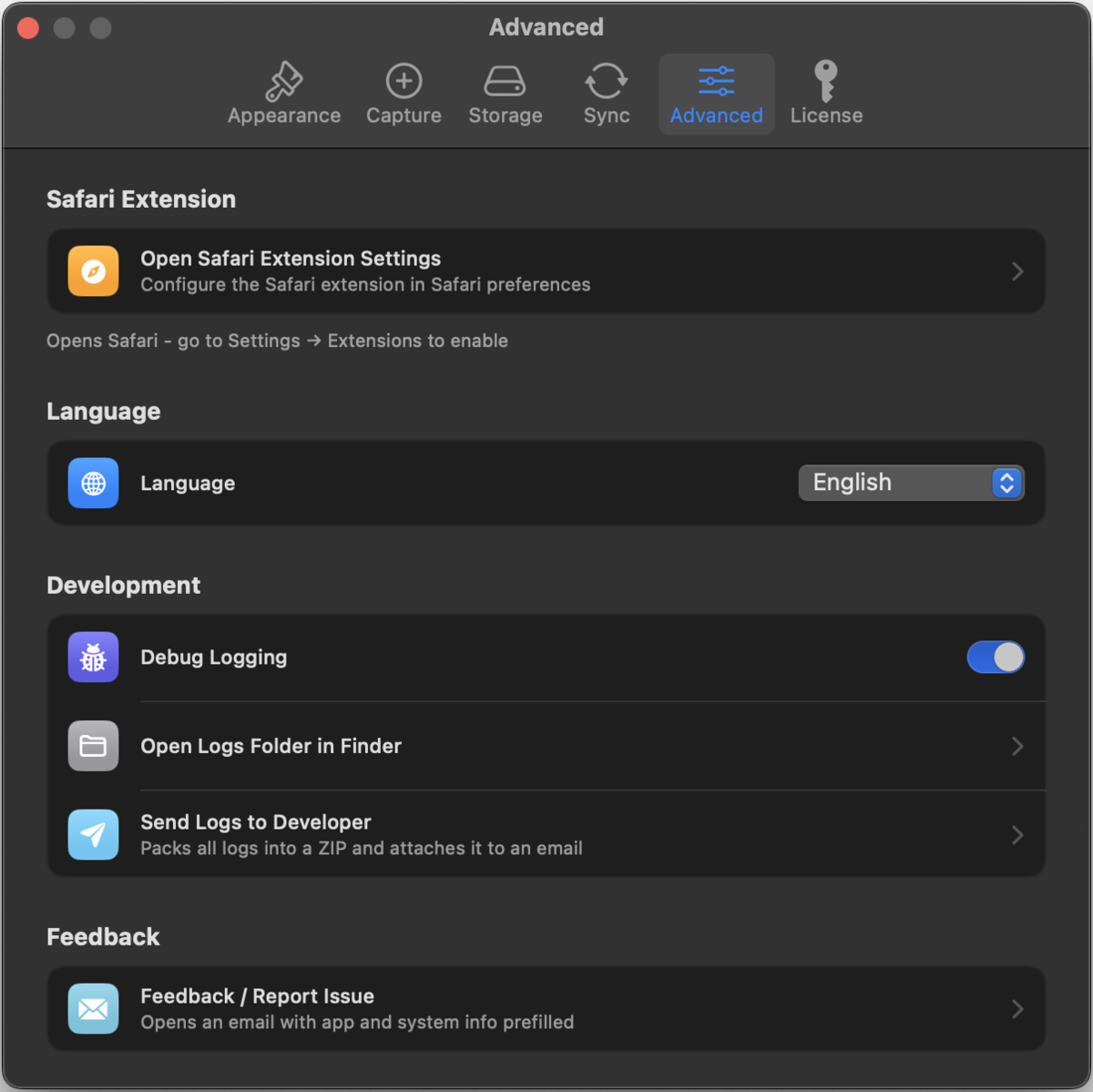
- Language: the app follows your system language; pick a different one here (the app restarts to apply). Eleven languages are available.
- Debug Logging: verbose logs for troubleshooting; Open Logs Folder macOS / Export Logs iOS.
- Safari Extension macOS: jump to Safari's extension settings (see Extensions).
- Feedback: Feedback / Report Issue opens a pre-addressed email with app and system info; Send Logs to Developer macOS attaches the log files.
License / Full Version macOS
Depending on where you got the app, this pane shows the Lifetime unlock & Restore Purchases (Mac App Store) or license key activation with your trial status (direct download). Details in Free Version, Purchase & Licensing. The iOS app has no license pane. Everything is included.