
On this page
Logins & Cookies
Pages behind a login, a paywall or a cookie consent banner don't show their content to an anonymous visitor, and an anonymous visitor is exactly what a fresh capture is. WebsiteArchiver solves this with a built-in browser whose cookies can be reused for captures.
Why some pages need cookies
When you archive a page, the capture engine visits it like a brand-new browser with no history. Sites that require consent ("Accept cookies to continue") or a session (news sites, forums, member areas) will show the consent wall or login prompt instead of the article. The archive then faithfully preserves… the wall.
The complete flow
An article behind a consent banner and a paywall, in four steps:
- Turn on Use saved cookies in the Quick Capture form.
- Click Open Browser to open the built-in browser on that page.
- Dismiss the consent banner and sign in.
- The article is unlocked, and the capture then runs with exactly those cookies.
The built-in browser
Open it from the Quick Capture form (Open Browser) or from Settings → Capture → Browser Login. It's a normal browser window inside the app: navigate to the site, accept the consent banner or log into your account. The cookies from this session are stored by the app. Your regular browser is not involved.
Capturing with saved cookies
Enable Use saved cookies in the Quick Capture form and the capture runs with the cookies from your built-in browser session: the consent wall stays away, the login works, the actual content gets archived.
For Quick URL captures, turn on Settings → Capture → Always use saved cookies so every one-click capture benefits automatically.
Fixing consent-wall captures
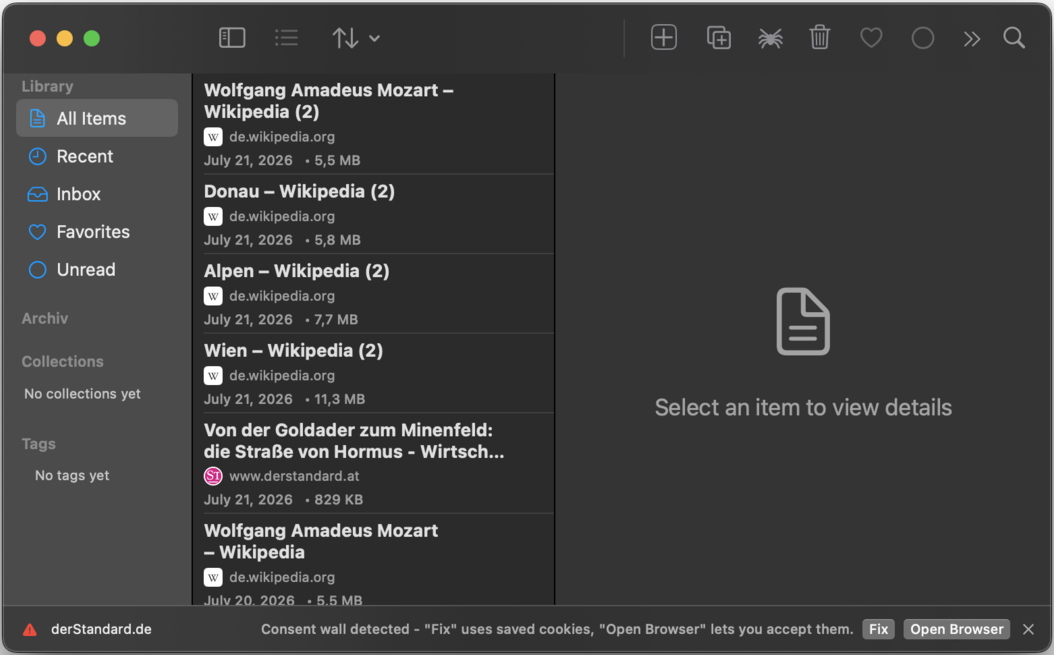
If a capture runs into a cookie or consent wall, the app notices and the row in the capture queue offers two shortcuts:
- Fix: retries the capture immediately with your saved cookies.
- Open Browser: opens the built-in browser on that page so you can accept the banner; the capture retries automatically afterwards.
Cookie Manager macOS
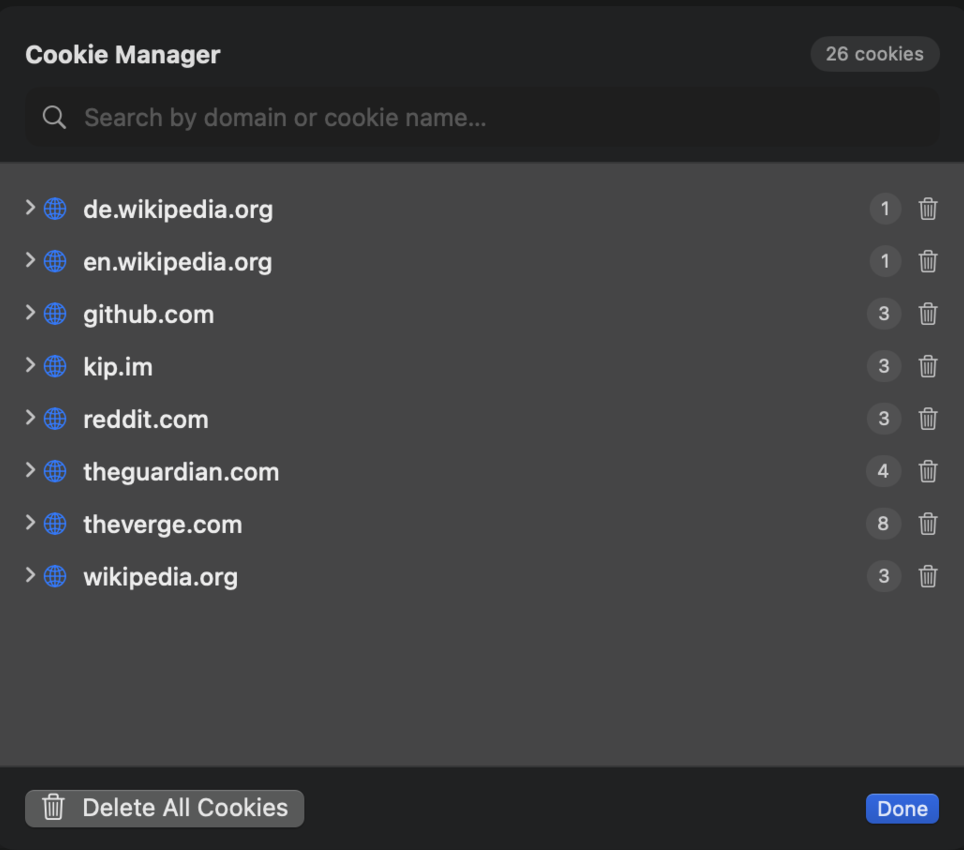
Settings → Capture → Cookie Manager lists the cookies stored by the built-in browser, grouped by site. Delete individual sites or clear everything, which is useful when a login has expired or you want a clean slate.
Saved cookies never leave your device and are only used when a capture explicitly asks for them.