On this page
Exporting Archives
Your archives are yours. Besides being plain files in your library folder, every item can be exported to standard formats for sharing, printing or long-term preservation.
Export formats macOS
| Format | Best for |
|---|---|
| Printing, annotating, sending to anyone. | |
| WARC | The standard of professional web archiving (used by the Internet Archive), for libraries, research and preservation workflows. |
| WebArchive | Apple's native format, opens directly in Safari. |
| MHTML | Single-file format readable by Chrome and Edge. |
Exporting an item macOS
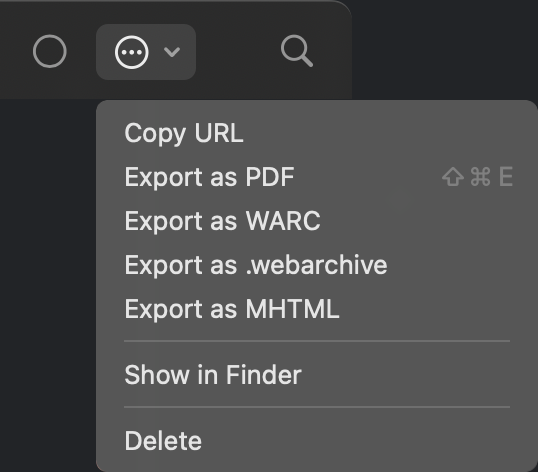
Open an item and use the Options menu in the toolbar: pick a format, choose where to save, done. Export PDF also has a shortcut: ⇧⌘E. The same menu offers Copy URL and Show in Finder: the archive itself is an ordinary file you can copy or back up directly.
Exporting whole crawls macOS
For a crawl, the Options menu adds Export Whole Crawl: a combined PDF (all pages in one document) or a combined WARC. Large crawls show a size warning and a progress bar during export.
Converting archives
Two commands from the item context menu transform archives in place (full details on the Images & Markdown page):
- Save as Markdown Only: converts the archive into a Markdown text file (the HTML version is removed; you're warned first and can undo).
- Remove Images: strips images from an existing archive to reclaim space.
Sharing on iOS iOS
On iPhone and iPad, use Share Snapshot in the item's Options menu: the self-contained HTML archive goes into the standard share sheet: AirDrop it to a Mac, attach it to Mail, save it to Files. Since the archive is one self-contained file, the recipient can open it in any browser.
For a full copy of your library, use the ZIP export in Backup & Library.