On this page
Installation & First Capture
WebsiteArchiver saves web pages as complete, self-contained files on your own device: readable offline, forever, without depending on any external service. This page gets you from download to your first archived page in a few minutes.
Installing WebsiteArchiver
macOS macOS 15.0+
There are two ways to get the Mac app (both offer the same features):
- Mac App Store: install the free version from the App Store. You can save up to 10 pages for free and unlock the unlimited full version with a one-time in-app purchase.
- Direct download: grab the DMG from websitearchiver.net, drag the app into your Applications folder and try it for free. The full version is unlocked with a license key, and the app updates itself automatically.
See Free Version, Purchase & Licensing for details on what the free version includes.
iOS / iPadOS iOS
WebsiteArchiver for iPhone and iPad is a separate app on the App Store. It is a one-time purchase with no free limit and no in-app purchases: everything is included.
First launch & library location
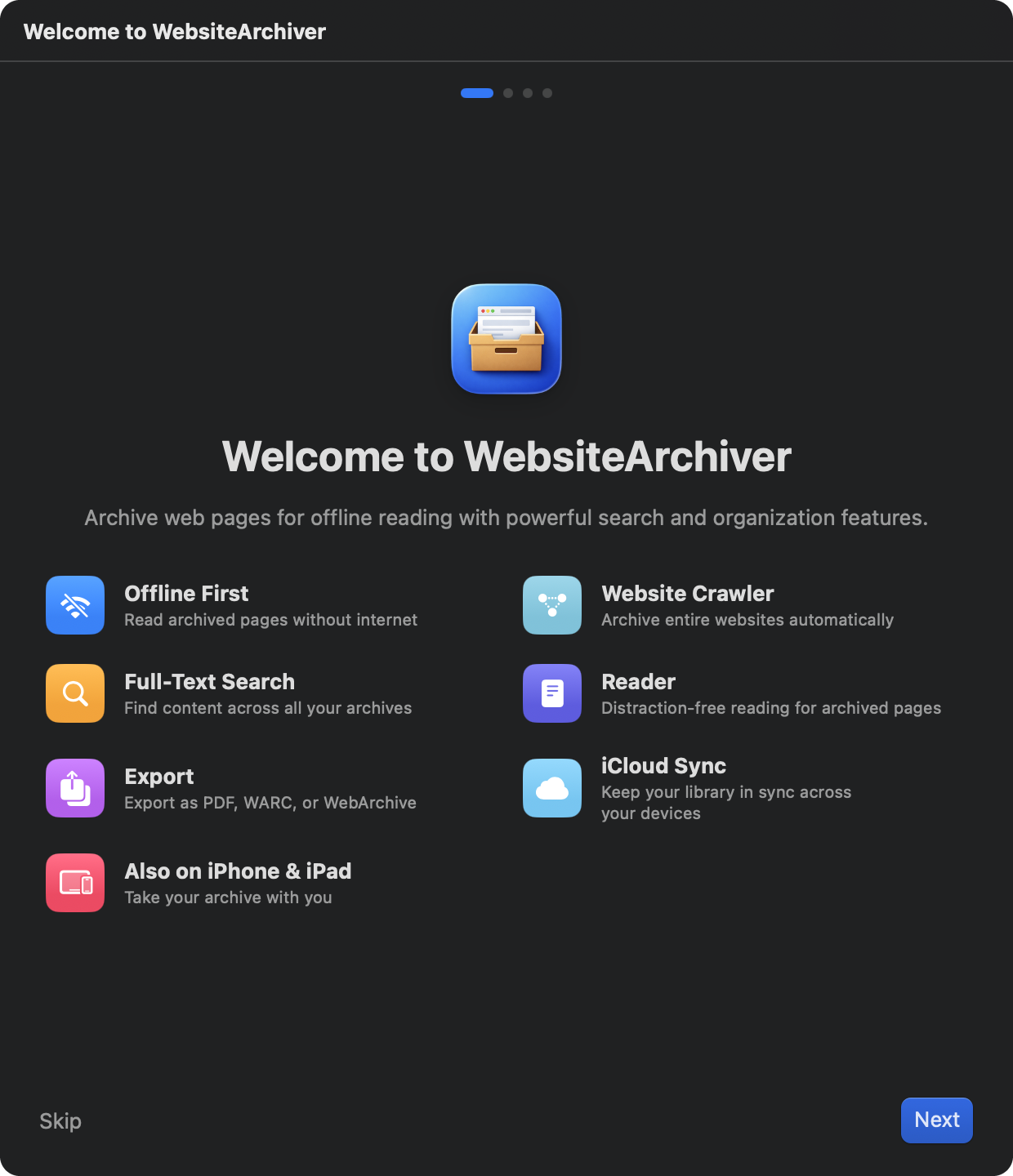
On first launch the app walks you through a short setup:
- Welcome: a quick overview of what the app can do.
- Library location macOS: choose the folder where your archive lives. This can be any folder, for example one inside your Documents. Everything the app saves ends up here as plain files and folders you can inspect in Finder. (On iPhone and iPad this step doesn't exist; see the note below.)
- Sync & Backup: an introduction to iCloud sync; you can switch it on here or any time later in Settings → Sync.
- Extensions: enable the Safari extension for one-click archiving straight from the browser toolbar.
On iOS the library is stored inside the app automatically. There is nothing to configure. On macOS you can move the library later in Settings → Storage (see Backup & Library).
Your first capture
On macOS:
- Copy the address of a page you want to keep.
- Click Quick Capture in the toolbar (or press ⌘N). The form opens with your copied URL already filled in.
- Optionally give the page a custom title or tags, then hit Capture.
On iOS:
- Tap the + button in the bottom bar and paste a URL, or simply share a page from Safari straight into the app (see Extensions & Automation).
- Tap Capture.
A progress bar appears at the bottom edge while the page is loaded, cleaned up and packed into your archive. When it finishes, the page shows up in your Inbox, ready to read offline.
How archiving works
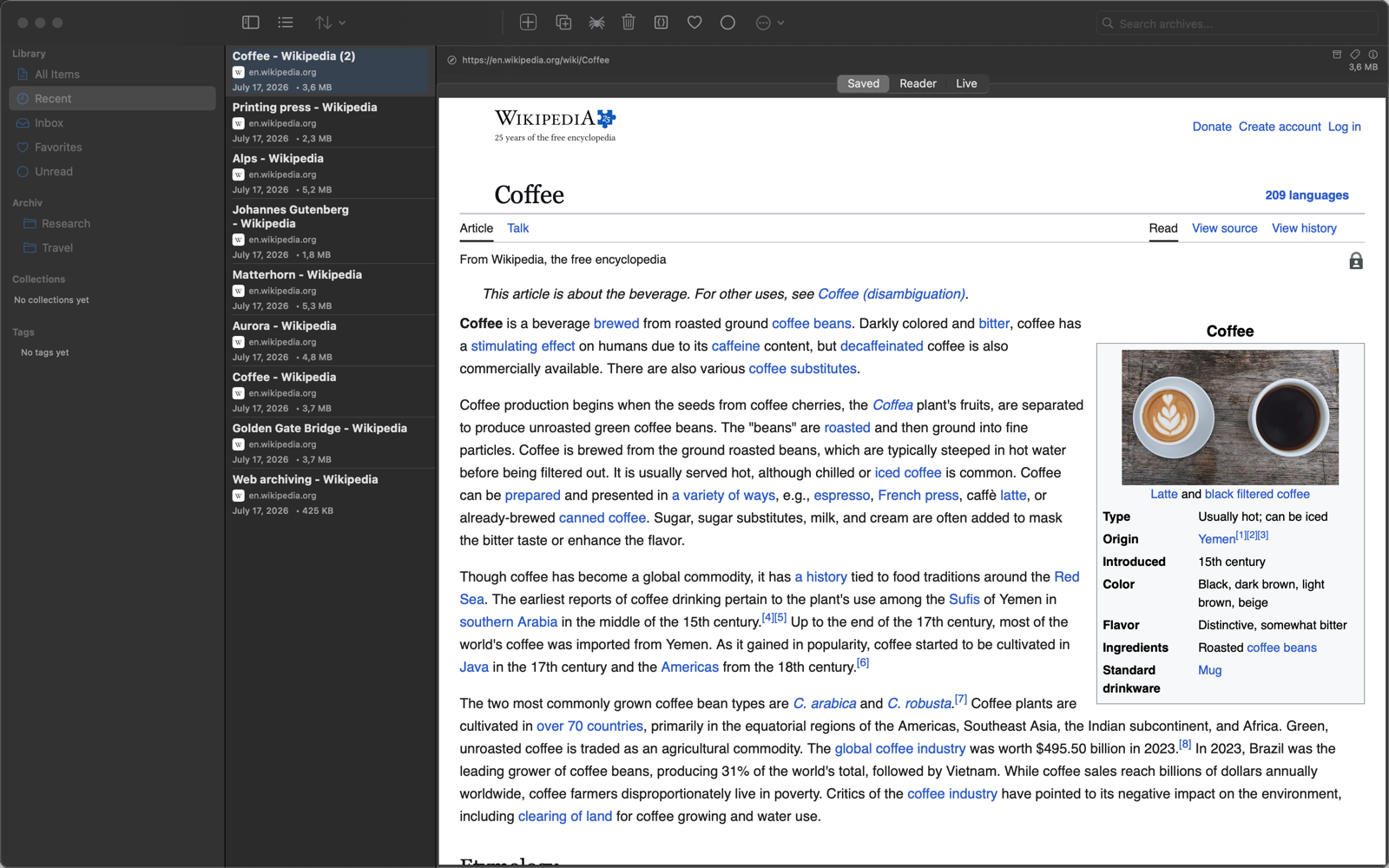
WebsiteArchiver loads the page in an invisible browser, waits for images and scripts to settle, expands lazy-loaded content, and then serializes everything (text, styles, images, even content hidden behind scroll animations) into a self-contained offline archive: an HTML file with its images stored alongside it (or, if you prefer, everything embedded into a single HTML file; see Capture Options). No external requests are needed to view it later; the archive works even if the original site disappears.
Every archive is a normal file in your library folder. Your data stays local unless you explicitly enable iCloud sync.
What's next
- Learn all the ways to save pages: Quick Capture & Quick URL
- Fine-tune what gets saved: Capture Options
- Archive whole websites at once: Website Crawler
- Keep your archive tidy: Folders, Collections & Tags