On this page
Quick Capture & Quick URL
There are two ways to save a page: the Quick Capture form when you want control over title, tags and options, and Quick URL when you just want the page saved with one click.
The Quick Capture form
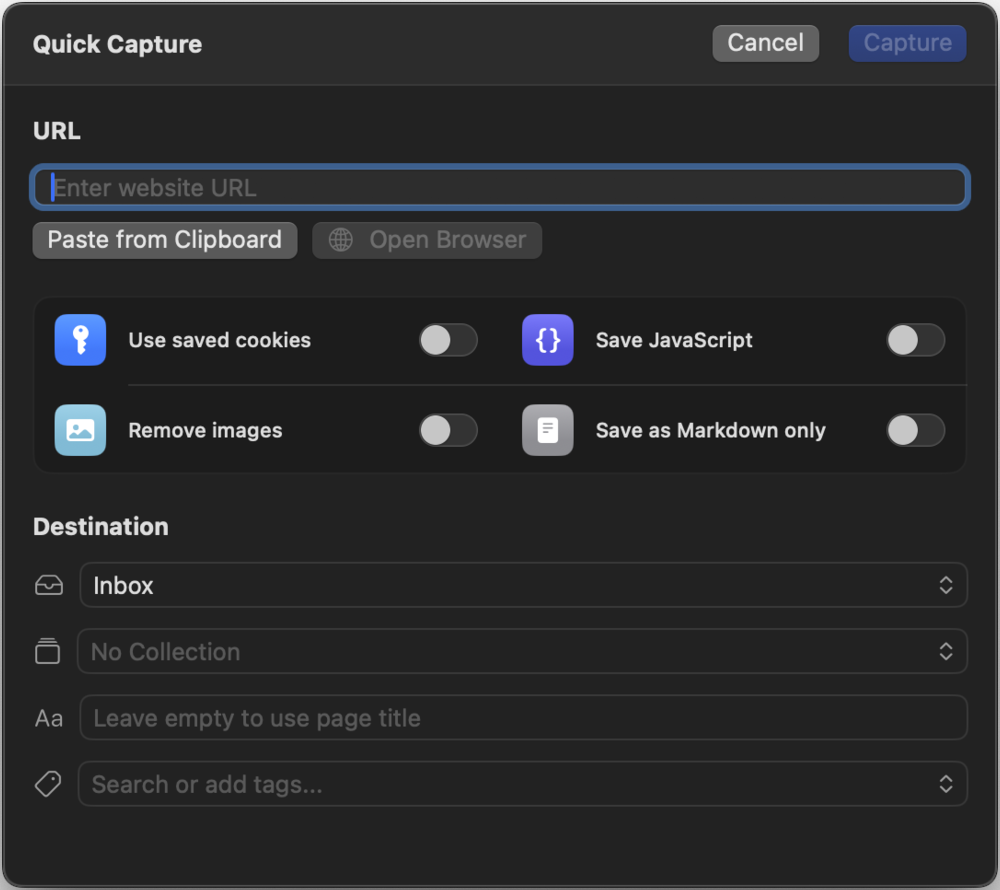
Open Quick Capture with the toolbar button or ⌘N. If your clipboard contains a URL it is filled in automatically. The form gives you:
- URL field: with a paste button and a validity indicator that shows whether the address can be captured.
- Custom title: overrides the page's own title in your library. Leave it empty and the page's title is filled in automatically as soon as it loads.
- Tags: comma-separated keywords for finding the page later; while typing, the app suggests your existing tags (see Folders, Collections & Tags).
- Destination: file the page into a folder right away (the Inbox is preset) and optionally add it to a collection.
- Capture options: cookies, JavaScript, images, Markdown and more, explained in Capture Options.
Hit Capture and the page is queued. You can keep working, or queue more pages right away.
Quick URL: save without a form
The Quick URL toolbar button macOS takes the URL from your clipboard and saves the page straight into your Inbox: no form, no questions. It uses the default options you set in Settings → Capture.
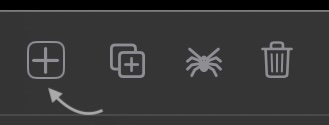
Quick URL is the fastest workflow for collecting many pages: copy a link anywhere, switch to WebsiteArchiver, click once. Combined with the Safari extension you don't even have to leave the browser.
Quick Paste (⇧⌘V) macOS
Press ⇧⌘V anywhere in the app to capture the URL on your clipboard. What happens next is up to you. In Settings → Capture → Shortcut you choose whether Quick Paste:
- opens the Quick Capture form pre-filled with the URL, or
- saves the page immediately to the Inbox, like Quick URL.
Capturing on iOS iOS
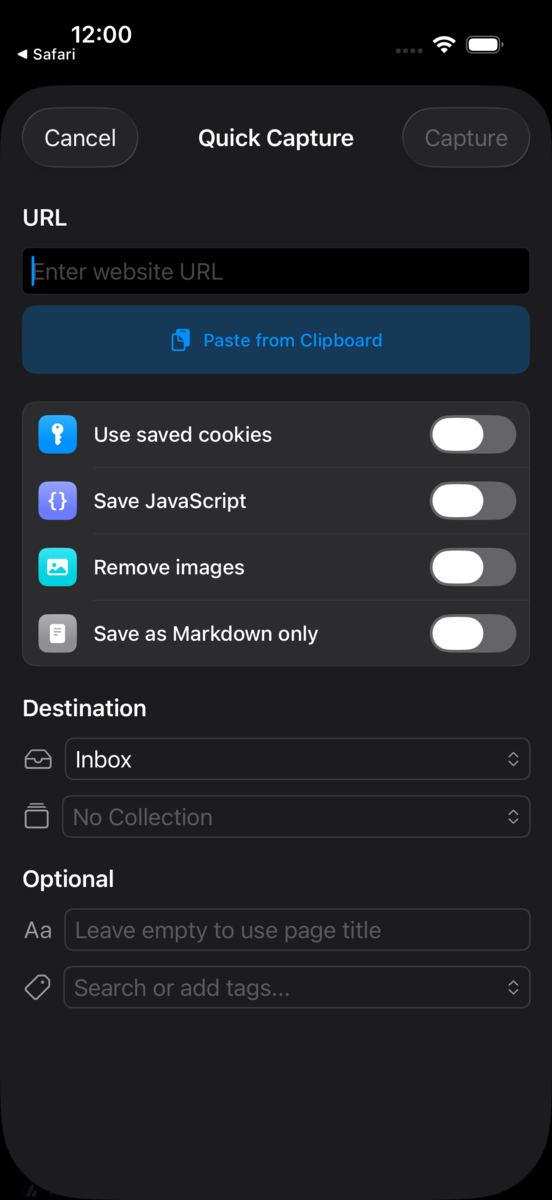
On iPhone and iPad, tap the + button in the bottom bar to open the capture sheet: same fields, same options as on the Mac. Even faster: share any page from Safari via the share sheet; depending on your settings it is saved to the Inbox immediately or opens the capture form first (see Extensions & Automation).
Captures keep running when you switch apps: the download continues in the background and the finished archive appears in your library when it's done (details in Capture Queue).