
On this page
Website Crawler macOS
The crawler archives whole websites instead of single pages: it follows links, collects every page in scope, lets you review the list, and then downloads them all as offline archives whose links point at each other.
What the crawler does
Open the crawler with the Crawler toolbar button. Enter a start URL, set the scope, and the crawler works in two passes: first it discovers pages by following links, then, after your review, it downloads each page as a self-contained archive. Internal links between the archived pages are rewritten so you can browse the whole site offline, page to page.
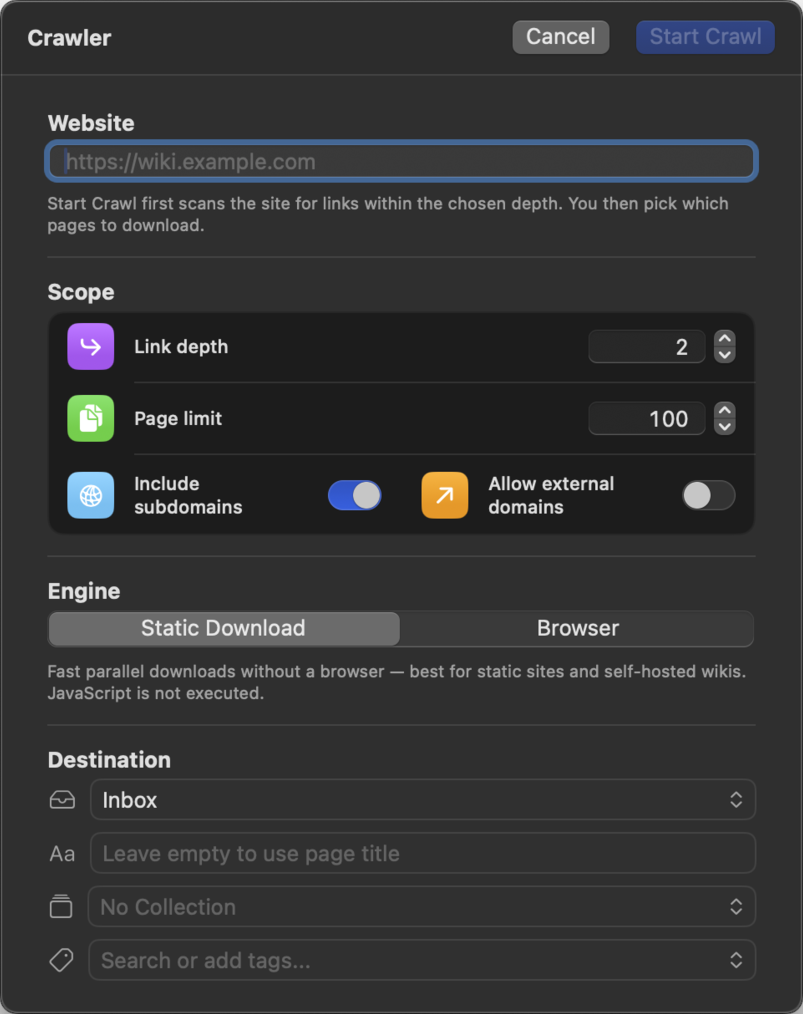
The crawl runs in its own window, and it keeps running if you close that window; reopen it any time to check progress.
Two engines: Static & Browser
| Static Download | Browser | |
|---|---|---|
| Speed | Fast, several pages in parallel | One page at a time |
| JavaScript | Not executed | Fully rendered, like a normal capture |
| Best for | Blogs, documentation, classic websites | JS-heavy sites, pages needing login/cookies |
| Options | None | Saved cookies, save JavaScript, remove images, Markdown only |
Start with the Static engine. It's dramatically faster. If pages come out incomplete, the crawler tells you: pages that appear to need JavaScript get an offer to reload them with the Browser engine.
Scope: depth, limits, domains
- Link depth: how many clicks away from the start page the crawler follows links.
- Page limit: a hard cap on the number of pages.
- Include subdomains: also archive pages on subdomains of the start host (
blog.example.comnext toexample.com). - Allow external domains: follow links to other websites too. This is powerful and easy to overuse, so it must first be unlocked in Settings → Capture → Crawler.
Destination: pick a parent folder from your library; the crawler creates a subfolder named after the site for the whole crawl.
The review step
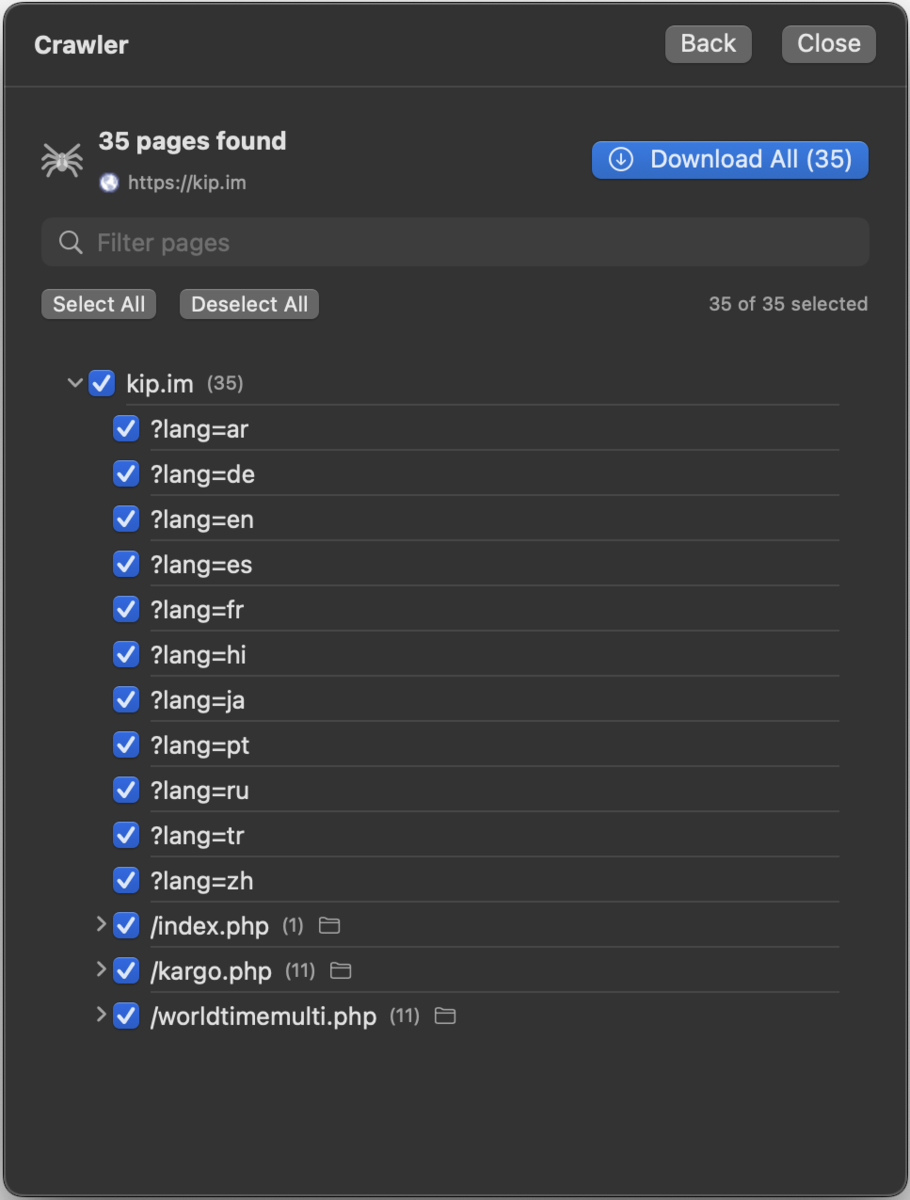
After discovery you see every found page as a tree, grouped by host and path. Untick anything you don't want (the shop's 500 product variants, the tag pages, the print views), then start the download. Only what you selected is archived.
Progress, pause & retry
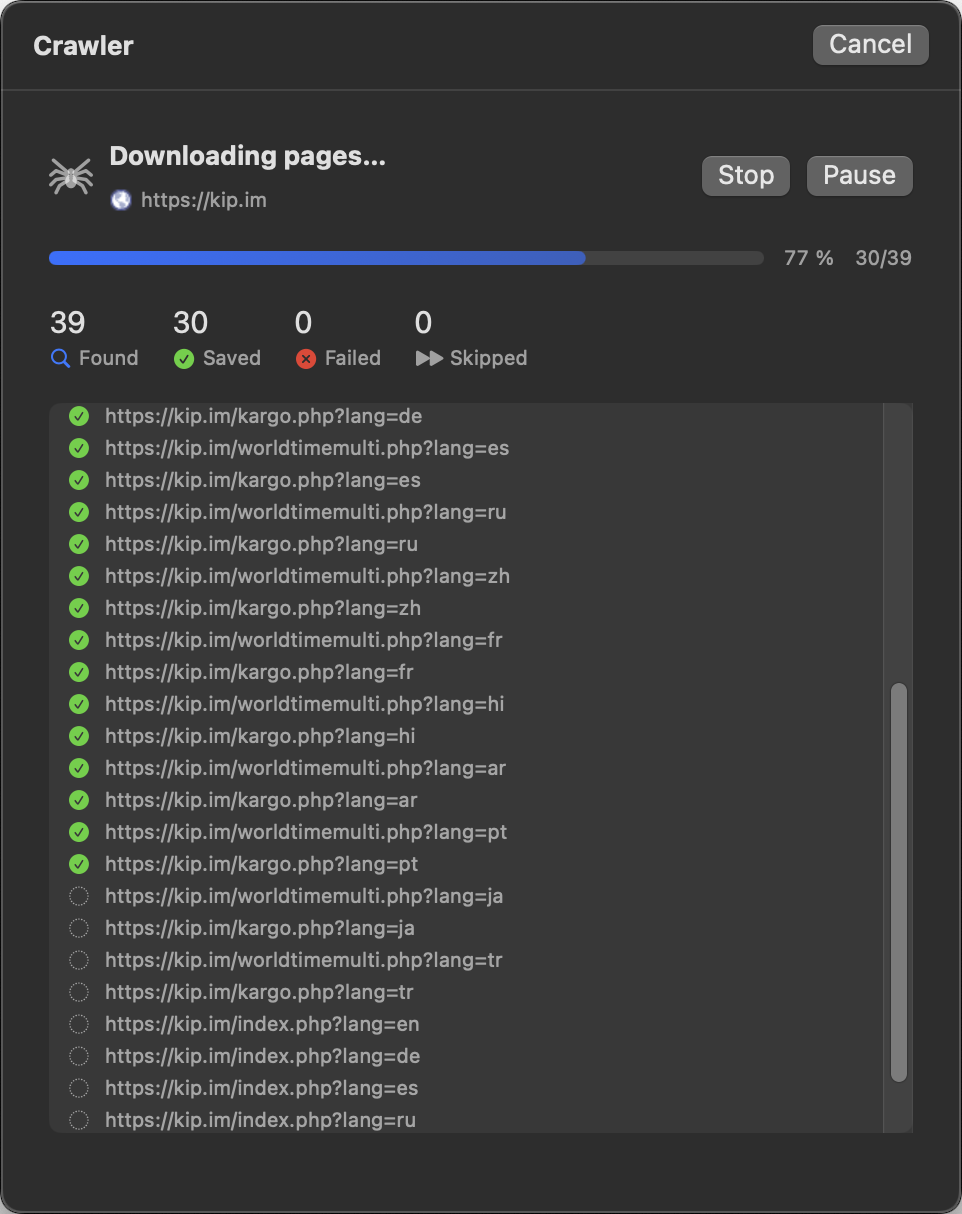
During the download you see live counters for Found / Saved / Failed / Skipped, the URLs currently being processed, and a list of failed pages. You can Pause / Resume or Cancel at any time, and Retry Failed re-runs just the pages that failed.
Crawls in your library

The pages of a crawl belong together, and the library treats them that way: they collapse into a single crawl group row in the item list. Click it to browse the crawl's pages; right-click for group actions: Show All Pages, Move To, or Delete Crawl (removes all pages of the crawl at once).
Prefer a flat list? Disable grouping via the sort menu's Group Crawls toggle, or hide crawl folders from the sidebar with Settings → Capture → Crawler → Hide crawl folders.
Crawler settings
In Settings → Capture → Crawler:
- Allow external domains: unlocks the scope option described above.
- Hide crawl folders in the sidebar.
- Respect robots.txt: honor the site's crawling rules. Off by default; turn it on when you crawl public sites you don't own.
- Politeness delay (ms): pause between requests to the same site.
- Parallel downloads: how many pages the static engine fetches at once.
- Default depth and default page limit for new crawls.
Free version limits
In the free version the crawler is limited to depth 1, and the page count is capped by your remaining free items (10 minus what you've already saved). The full version removes both limits. See Free Version, Purchase & Licensing.