On this page
iCloud Sync
Capture on the Mac, read on the iPad, tag on the iPhone: sync keeps your library identical on all your devices, using your own iCloud. No third-party server ever sees your archive.
How sync works
WebsiteArchiver syncs through your iCloud Drive with its own purpose-built engine. Every change (a new capture, an edited tag, a move, a deletion) is recorded and exchanged between your devices via iCloud. Conflicts resolve automatically: the newer change wins.
- Your devices talk only to your iCloud: no accounts, no third-party cloud.
- Changes typically arrive within moments while the app is open.
- Deletions sync too: remove a page on one device and it disappears everywhere.
Turning sync on
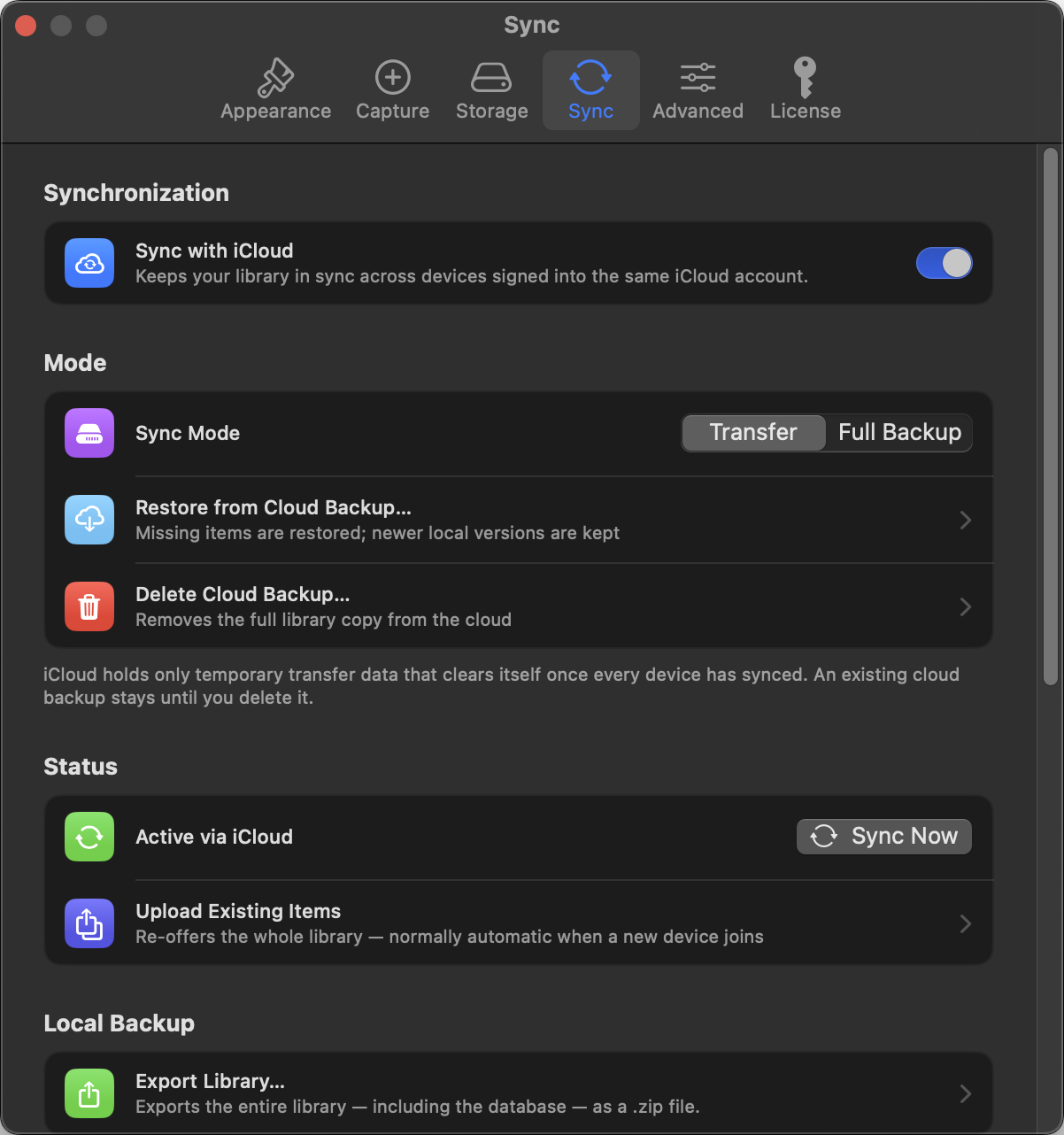
- Sign into iCloud on each device (with iCloud Drive enabled).
- In Settings → Sync, set the provider to iCloud.
- Choose a mode, and that's it. Existing items are uploaded automatically the first time (you can re-trigger this with Upload Existing Items).
When a brand-new device joins, it first receives the lightweight metadata of every item (titles appear quickly, marked with a small cloud badge) and then downloads the archive contents in the background.
Transfer vs. Full Backup
| Transfer | Full Backup | |
|---|---|---|
| What iCloud stores | Only changes in transit, cleaned up after all devices received them | A complete, standalone copy of your library |
| iCloud space needed | Minimal | Roughly the size of your library |
| Extra benefit | None | A new device (or a reinstalled one) can restore the whole library from iCloud alone |

Devices

Settings → Sync → Devices lists every device in the sync circle with its platform and when it was last seen. Retired a Mac? Remove it here so the engine stops waiting for it.
Restoring from a cloud backup
With Full Backup mode active, a fresh installation can pull everything back: Settings → Sync → Restore from Cloud Backup shows how many items the backup holds and rebuilds your library from it. Delete Cloud Backup removes the copy from iCloud if you no longer want it there.
Status, problems & manual sync
The Sync pane shows a live status dot, the time of the last sync and how many changes are waiting. Sync Now forces a round immediately. If individual items fail (network hiccups, iCloud throttling), they appear under Sync Problems and are retried automatically.
For stubborn cases there is an escape hatch: Erase & Restart… (offered when sync keeps failing) and Erase iCloud Sync Data… in the pane's maintenance section both clear the sync data in iCloud and start over. Your local library stays untouched. If the sync data was erased from another device, the remaining devices show a banner with a one-click Reconnect. And when a device in the list hasn't been seen for a long time, the pane warns you: remove retired devices (see above) so the engine can clean up after itself.
iOS The iPhone and iPad also sync in the background: iOS periodically wakes the app so changes flow even while you're not using it.
Availability
On macOS, iCloud sync is part of the full version (one-time purchase or license key; see Licensing). On iOS it's included, since the iOS app is a paid app. Your provider choice is preserved when locked: unlock, and sync resumes where it left off.